

 Deutsch
 Español
 Français
 Português
How to install and use PhoneInfoga in Termux on Android
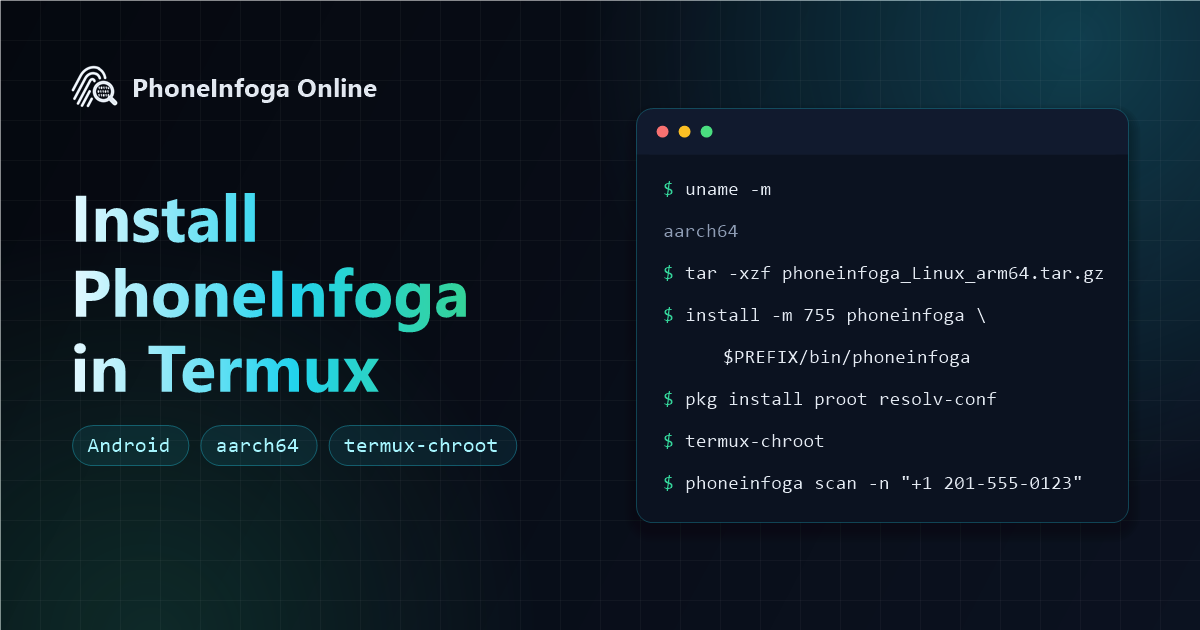
Termux has no PhoneInfoga package, and the project publishes no Android app. What works is its official Linux build for ARM processors, the ones of almost every phone: you download it in Termux and run it as on any Linux. One step is specific to Android. PhoneInfoga reads its DNS settings from /etc/resolv.conf, a file Android does not have, so you run it through termux-chroot, which provides one. Version 2.11.0, released on February 21, 2024, is still the latest. If you only want a report on one number, our online version works in your phone's browser with nothing to install.
Is there a PhoneInfoga package or app for Termux?
No. Termux's repositories have no PhoneInfoga package, and neither does the Termux User Repository, so pkg install phoneinfoga stops with an Unable to locate package phoneinfoga error. The project publishes no Android app or APK either: an APK that carries the name does not come from it.
The project does build PhoneInfoga for ARM processors. Its maintainer added the 64-bit ARM version in April 2020, with v2.0.6, after a Termux user asked for it in GitHub issue #248. That build is a single program that needs nothing else from Termux, and it is the one this guide installs.
We wrote this guide on November 27, 2026, from the v2.11.0 code and release files, Termux's documentation and package recipes, and the project's GitHub issues.
Install Termux from F-Droid or GitHub
Install the Termux app from F-Droid, or from the releases of its GitHub project, termux/termux-app, where you take an apt-android-7 build. Both need Android 7 or newer. Keep the same source for Termux and its add-ons, since each source signs them with its own key. Avoid the Google Play version. It is an experimental branch for Android 11 and newer, and its own documentation warns that statically linked programs, such as PhoneInfoga, do not run there.
Then open Termux and update its packages:
pkg update
pkg upgrade
Install PhoneInfoga in Termux
First, ask Termux for the processor type of your phone:
uname -muname -m answer | Archive |
|---|---|
aarch64, on almost every recent phone | phoneinfoga_Linux_arm64.tar.gz |
armv7l or armv8l, on older or 32-bit phones | phoneinfoga_Linux_armv7.tar.gz |
x86_64, in an emulator or on a Chromebook | phoneinfoga_Linux_x86_64.tar.gz |
On aarch64, these lines download the arm64 archive and its checksums into your Termux home folder. The tar command only extracts the archive if sha256sum prints OK. The install line then copies the program to $PREFIX/bin, a folder on Termux's PATH:
cd ~
curl -fLO https://github.com/sundowndev/phoneinfoga/releases/download/v2.11.0/phoneinfoga_Linux_arm64.tar.gz
curl -fLO https://github.com/sundowndev/phoneinfoga/releases/download/v2.11.0/phoneinfoga_checksums.txt
sha256sum --ignore-missing -c phoneinfoga_checksums.txt && tar -xzf phoneinfoga_Linux_arm64.tar.gz
install -m 755 phoneinfoga $PREFIX/bin/phoneinfoga
phoneinfoga version
For another archive, change its name in the two lines where it appears. You need no sudo here, since $PREFIX/bin belongs to the Termux app. Going by the release build settings, the last line should print PhoneInfoga 2.11.0-5f6156f.
Work in the Termux home folder, as above, and not in the phone's shared storage. Android does not let programs run from /sdcard or ~/storage/shared, so an archive extracted there gives Permission denied. If you downloaded the archive with your browser, copy it to the home folder first, with cp ~/storage/downloads/phoneinfoga_Linux_arm64.tar.gz ~ once termux-setup-storage has given Termux access to your files.
Fix the DNS error with termux-chroot
PhoneInfoga is built for Linux, where the address of the DNS servers sits in /etc/resolv.conf. Android has no such file, so the program falls back to a DNS server on the phone itself, which does not exist. The scanners that go online, numverify, ovh and googlecse, then fail with an error that ends with connection refused, after an address such as [::1]:53.
The termux-chroot command fixes this. It starts a shell in which Termux's own files appear at the usual Linux places, /etc/resolv.conf included. Install it, with the package that provides the DNS file, then open that shell:
pkg install proot resolv-conf
termux-chroot
Inside, run PhoneInfoga as usual. Type exit to leave that shell. You can also put termux-chroot in front of a single command, as in termux-chroot phoneinfoga serve. For a scan, open the shell first, because termux-chroot loses the quotes around a number that contains spaces.
For a number from the United States, scanned without any key, only local and googlesearch run, and neither goes online. That first scan works even outside termux-chroot.
Run your first PhoneInfoga scan in Termux
Scan a number in international format, country code first, in quotes when it contains spaces:
phoneinfoga scan -n "+1 201-555-0123"For this fictional number, the v2.11.0 code prints its formats, its country and 45 Google search links, then 2 scanner(s) succeeded. That last line means PhoneInfoga works.
The other scanners need an API key or only cover a few countries. Our PhoneInfoga commands tutorial explains the output and every option, and those commands are the same in Termux.
Use the PhoneInfoga web interface in your phone's browser
The serve command starts a web interface for the same scans. Run it through termux-chroot, so that the scanners that go online work too:
termux-chroot phoneinfoga serveIt should print Listening on :5000. Leave Termux open, then go to http://localhost:5000 in your phone's browser. To stop the server, come back to Termux, tap CTRL in the row of extra keys above the keyboard, then C. On Android 12 and newer, the system can also stop a long-running Termux process, and Termux then shows [Process completed (signal 9) - press Enter].
The server listens on every network interface and asks for no password. On a shared Wi-Fi network, anyone can reach port 5000 of your phone and run scans with your API keys, so only start it on a network you trust.
Add your API keys in Termux
Set your keys in the shell before you scan, inside termux-chroot if you use it:
export NUMVERIFY_API_KEY=YOUR_KEY
phoneinfoga scan -n "+1 201-555-0123"
The key lasts until you close that shell. To keep it, write it in a .env file of the folder you run PhoneInfoga from. Which key to get, and how to check that PhoneInfoga read it, is explained in why PhoneInfoga says “API key is not defined”.
Fix PhoneInfoga errors in Termux
Termux's shell is bash, so most messages start with bash::
| Message | Cause | Fix |
|---|---|---|
Unable to locate package phoneinfoga | Termux has no PhoneInfoga package. | Install the release as shown above. |
phoneinfoga: command not found | The program is not in $PREFIX/bin yet. | Run the install line of the install section. |
bash: ./phoneinfoga: Permission denied | The file sits in shared storage, or it is a folder, such as a git clone. | Extract the archive in the Termux home folder and run the program from there. |
bash: ./phoneinfoga: cannot execute binary file: Exec format error | The archive is for another processor. | Take the archive that matches uname -m. |
An error that ends with connection refused | Android has no /etc/resolv.conf. | Run PhoneInfoga inside termux-chroot. |
ERROR: Could not open requirements file or No module named 'urllib3.packages.six.moves' | A tutorial for the old Python version 1. | Install the release instead, as explained in the next section. |
bash: ./phoneinfoga: Bad address | Reported in issue #1398 with the arm64 archive, without a confirmed cause. The archive may not match your Termux. | Take the archive that matches uname -m, then update Termux with pkg upgrade. |
has unexpected e_type: 2 | Termux comes from Google Play, whose version cannot run static programs such as PhoneInfoga. | Uninstall it, then install Termux from F-Droid or GitHub. |
For the messages that come from PhoneInfoga itself, about numbers or API keys, see why PhoneInfoga is not working and how to fix it.
Why Termux tutorials with git clone and Python fail
Most PhoneInfoga tutorials for Termux date from version 1, a Python script that version 2 replaced in March 2020. Their steps clone the repository with git, then run pip install -r requirements.txt and python phoneinfoga.py. Today's repository has neither file, so these steps stop at once, with ERROR: Could not open requirements file or can't open file 'phoneinfoga.py'.
Some tutorials clone an old copy of version 1 instead, such as abhinavkavuri/PhoneInfoga, and even misspell the file as requirments.txt. On the current Python of Termux, that old code breaks too: a Termux user got ModuleNotFoundError: No module named 'urllib3.packages.six.moves' in May 2025 (issue #1470). The project's maintainer has said that version 1 is no longer supported (issue #1283).
Advice against Google blocks also dates from version 1, which scraped Google. Version 2 never contacts Google, since its googlesearch scanner only writes the search links. Install the release as shown above, and none of these steps is needed.
Update or uninstall PhoneInfoga in Termux
Version 2.11.0 is still the latest release, so there is nothing to update for now. If a new release comes out, download its archive the same way, with the new version number in the addresses.
PhoneInfoga writes no settings of its own. These lines remove the program and the files you downloaded:
rm $PREFIX/bin/phoneinfoga
rm ~/phoneinfoga ~/phoneinfoga_Linux_arm64.tar.gz ~/phoneinfoga_checksums.txt
If no other tool of yours needs them, pkg uninstall proot resolv-conf also removes termux-chroot and its DNS file.